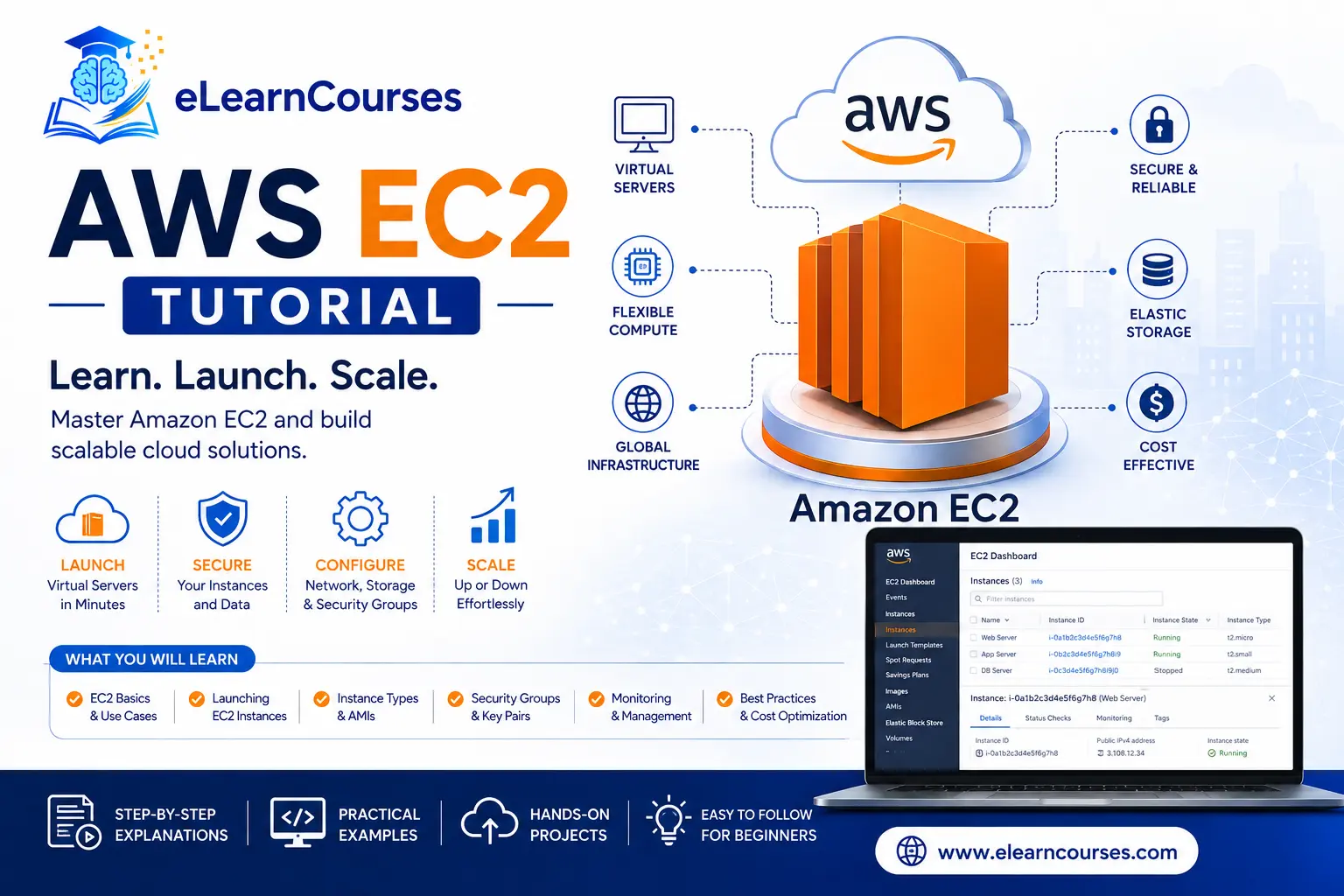
AWS EC2 Tutorial for Beginners (2026): Complete Guide to Amazon Elastic Compute Cloud
If you’re learning AWS, EC2 is almost always where the real hands-on work begins. It’s the service behind a huge share of what runs on AWS — web servers, application backends, databases, machine learning inference, and much more — and understanding it deeply will make nearly every other AWS service easier to learn afterward, since so many of them either run on top of EC2 or interact with it directly.
This tutorial walks through everything you need to actually use EC2 with confidence: what it is, the core concepts you need before you touch the console, how instance types and families work in 2026 (including the newest Graviton5 and Nitro v6 hardware), a step-by-step walkthrough of launching your first instance, pricing models, security best practices, and how to scale beyond a single server. By the end, you’ll have both the conceptual understanding and the practical steps to start building on EC2 yourself.
What Is Amazon EC2?
Amazon Elastic Compute Cloud (EC2) is AWS’s core virtual server service — it lets you rent computing capacity in the cloud instead of buying and maintaining physical hardware. Each virtual server you launch is called an “instance,” and you have full control over it: choose the operating system, install software, configure networking, and scale capacity up or down based on demand.
The “Elastic” in EC2’s name is deliberate. Unlike a physical server, which is fixed in capacity once purchased, EC2 instances can be resized, multiplied, or shut down within minutes, letting your infrastructure expand and contract along with actual demand. This elasticity — combined with pay-as-you-go pricing — is the core reason EC2 (and cloud computing generally) replaced so much traditional on-premises server infrastructure over the past decade.
EC2 sits at the center of the AWS ecosystem. Services like Elastic Beanstalk, EMR, and many managed database options run on top of EC2 under the hood, and understanding EC2 directly gives you a much clearer mental model of how the rest of AWS actually works, rather than treating higher-level services as black boxes.
Key EC2 Concepts You Need to Know
Before launching your first instance, it’s worth getting comfortable with a handful of core concepts — nearly every EC2 tutorial and certification exam question builds on these.
Amazon Machine Image (AMI): An AMI is a template that contains the operating system and any pre-installed software your instance needs to start with. AWS provides official AMIs (Amazon Linux, Ubuntu, Windows Server), and you can also create your own custom AMIs from a configured instance to replicate that exact setup later.
Instance type: The instance type determines the hardware profile of your virtual server — how much CPU, memory, storage, and network performance it gets. Instance types are grouped into families optimized for different workloads, covered in detail in the next section.
Key pair: A key pair is a set of cryptographic keys AWS uses to securely authenticate your connection to an instance instead of a traditional password. AWS holds the public key, and you keep the private key (a .pem file) safe on your own machine — losing it typically means losing SSH access to that instance.
Security group: A security group acts as a virtual firewall controlling inbound and outbound traffic to your instance. By default, all inbound traffic is blocked until you explicitly allow it — for example, opening port 22 for SSH access or port 80/443 for web traffic.
Elastic IP: By default, an instance’s public IP address changes if you stop and restart it. An Elastic IP is a static, persistent public IP address you can attach to an instance, useful for cases where you need a fixed address (like pointing a domain name at your server).
EBS (Elastic Block Store): EBS provides persistent block storage volumes that attach to your EC2 instances, functioning like a virtual hard drive. Data on an EBS volume survives instance stops and restarts, unlike instance store volumes, which are physically tied to the underlying hardware and lost when the instance stops.
EC2 Instance Types & Families Explained (2026 Update)
Instance type selection is one of the most consequential decisions you’ll make when launching EC2 resources, and it’s an area that’s evolved significantly heading into 2026 with the arrival of Graviton5 and next-generation Intel and AMD processors.
How instance naming works: EC2 instance types follow a consistent naming pattern: <family><generation><additional capabilities>.<size>. For example, c7g.2xlarge breaks down as: C (compute-optimized family), 7 (7th generation), g (Graviton/ARM-based processor), and 2xlarge (a specific size within that instance type).
The major instance families:
- General purpose (T, M families) — Balanced CPU, memory, and networking for a broad range of workloads like web servers and small-to-medium databases. T-family instances (like t3.micro, popular for free-tier experimentation) use burstable performance, while M-family instances offer more consistent, sustained performance.
- Compute optimized (C family) — Higher CPU-to-memory ratio, ideal for compute-intensive workloads like batch processing, gaming servers, and scientific modeling.
- Memory optimized (R, X families) — Higher memory-to-CPU ratio, designed for workloads like in-memory databases, real-time big data analytics, and large-scale caching.
- Storage optimized (I, D families) — High-speed, high-IOPS local NVMe storage for workloads like NoSQL databases (MongoDB, Cassandra) and data warehousing.
- GPU/accelerated computing (G, P families) — Instances with attached GPUs for machine learning training and inference, graphics rendering, and high-performance computing. 2026 has introduced G7 instances with NVIDIA’s latest Blackwell-generation GPUs specifically for demanding AI workloads.
Graviton processors — the default recommendation for most new workloads in 2026: AWS’s own ARM-based Graviton processors have become the go-to choice for cost-conscious deployments. Graviton4 (powering families like C8g, M8g, and R8g) delivers meaningfully better price-performance than equivalent x86 instances for most general-purpose and containerized workloads, and Graviton5 — which reached general availability in mid-2026 on M9g and M9gd instances — pushes this further, with early availability specifically optimized for demanding AI inference workloads.
The main reason to skip Graviton in 2026 comes down to compatibility: Windows Server doesn’t run on ARM architecture, and any software you depend on that’s only distributed as an x86 binary will need to stay on Intel or AMD-based instances instead.
All current-generation EC2 instances run on the AWS Nitro System, AWS’s custom hypervisor and hardware platform that improves performance, security, and reliability compared to older virtualization approaches — this is largely invisible to you as a user, but it’s part of why current-generation instances consistently outperform older ones even at a similar advertised spec.
How to Launch Your First EC2 Instance (Step-by-Step)
Here’s the practical walkthrough for launching your first instance through the AWS Management Console.
- Sign in to the AWS Console and navigate to the EC2 dashboard, found under the “Compute” section of the services menu.
- Click “Launch Instance” to start the configuration wizard.
- Name your instance — a clear, descriptive name makes it much easier to manage multiple instances later.
- Choose an AMI — for a first instance, Amazon Linux 2023 or Ubuntu are common, well-documented starting points.
- Select an instance type — for learning and experimentation,
t3.microort4g.micro(the Graviton equivalent) are both eligible for the AWS Free Tier, giving you 750 hours per month at no cost for the first 12 months of a new account. - Create or select a key pair — generate a new key pair if this is your first instance, and download the
.pemfile immediately, since AWS won’t let you download it again later. - Configure network settings — for a first instance, the default VPC and subnet are fine. Make sure your security group allows SSH (port 22) from your IP address, and HTTP/HTTPS (ports 80/443) if you’re planning to host a website.
- Configure storage — the default 8GB gp3 EBS volume is sufficient for basic experimentation; increase this if you’re planning to install larger applications or store significant data.
- Review and launch — double-check your configuration, then click “Launch Instance.” Your instance will typically be running and reachable within one to two minutes.
Once your instance shows a “running” state with a passed status check, it’s ready to connect to.
Connecting to Your EC2 Instance
How you connect depends on your instance’s operating system.
For Linux instances (SSH): From a terminal, set the correct permissions on your key file first (chmod 400 your-key.pem on Mac/Linux), then connect using ssh -i your-key.pem ec2-user@your-instance-public-ip (the username varies slightly by AMI — ec2-user for Amazon Linux, ubuntu for Ubuntu AMIs).
For Windows instances (RDP): Use the “Get Windows Password” option in the EC2 console, upload your key pair file to decrypt the auto-generated administrator password, then connect using any Remote Desktop Protocol client with that instance’s public IP and decrypted credentials.
EC2 Instance Connect: For a browser-based alternative that doesn’t require managing SSH clients locally, AWS also offers EC2 Instance Connect directly from the console — a convenient option for quick checks or troubleshooting without a full terminal setup.
EC2 Pricing Models: On-Demand, Reserved, Spot, and Savings Plans
Understanding EC2’s pricing models is essential to avoiding both wasted spend and unpleasant billing surprises — and it’s a common area of confusion for beginners.
On-Demand pricing charges by the second (with a one-minute minimum) with no upfront commitment, offering maximum flexibility at the highest per-hour rate. It’s the right default while you’re learning or running unpredictable, short-term workloads.
Reserved Instances (RIs) offer significant discounts — often 40–60% versus On-Demand — in exchange for a one- or three-year commitment to a specific instance type and region. They make sense for stable, predictable, long-running workloads where you’re confident about your capacity needs well in advance.
Savings Plans offer similar discount levels to Reserved Instances but with more flexibility — you commit to a consistent dollar amount of compute usage per hour rather than a specific instance type, letting you shift between instance families and even, for Compute Savings Plans, between EC2 and other compute services like Lambda and Fargate without losing your discount.
Spot Instances let you bid on AWS’s unused compute capacity at discounts of up to 90% off On-Demand pricing, with the tradeoff that AWS can reclaim that capacity with just a two-minute warning if it’s needed elsewhere. Spot Instances are ideal for fault-tolerant, flexible workloads like batch processing, CI/CD build agents, and stateless web tier scaling — but a poor fit for anything that can’t gracefully handle sudden interruption.
A practical rule of thumb for beginners: start with On-Demand while learning and prototyping, then move stable production workloads to Reserved Instances or Savings Plans once your usage patterns become predictable, and consider Spot Instances specifically for interruption-tolerant batch or scaling workloads where the cost savings are worth the added complexity.
A concrete example to make this tangible: A small t3.small instance running 24/7 for a month (730 hours) at On-Demand pricing typically costs somewhere in the $15–20/month range in most U.S. regions. Committing to a one-year Reserved Instance for that same instance type commonly brings the effective monthly cost down by 30–40%,
while a Spot Instance running the same workload (assuming it isn’t interrupted) could cost roughly 70–90% less than On-Demand. The catch, of course, is that Spot pricing assumes your workload can tolerate the instance being reclaimed with short notice — which is exactly why it’s a poor fit for something like a customer-facing database, but a great fit for a background batch job that can simply resume on a new instance if interrupted.
EC2 Storage Options: EBS vs. Instance Store
EC2 offers two fundamentally different storage approaches, and mixing them up is a common early mistake.
EBS (Elastic Block Store) is network-attached, persistent block storage that exists independently of any single instance. Data on an EBS volume survives instance stops, restarts, and even termination (if configured to do so), and volumes can be resized, snapshotted for backup, and reattached to different instances as needed. Most production EC2 workloads use EBS as their primary storage.
Instance store provides temporary, high-performance local storage that’s physically attached to the underlying host hardware. It offers excellent I/O performance, but all data is permanently lost if the instance is stopped, terminated, or the underlying hardware fails — making it suitable only for temporary data like caches, buffers, or data that’s replicated elsewhere.
For nearly all beginner and general-purpose use cases, EBS is the right default. Instance store is a deliberate choice for specific high-throughput, ephemeral-data workloads, not a general-purpose storage option.
EC2 Security Best Practices
Security misconfigurations remain one of the most common sources of real-world cloud incidents, and EC2 is often where they originate. A few practices consistently show up across AWS’s own guidance and industry best practices:
- Never use root account credentials for daily operations. Create IAM users or roles with only the permissions actually needed for a given task (the principle of least privilege).
- Restrict security group rules tightly. Avoid opening SSH (port 22) or RDP (port 3389) to
0.0.0.0/0(the entire internet); scope access to your specific IP address or a VPN range instead. - Enable Multi-Factor Authentication (MFA) on your AWS account, particularly for any account with administrative access.
- Keep your AMIs and installed software patched. Outdated software on a publicly reachable instance is one of the most common entry points for automated attacks.
- Use IAM roles instead of embedding credentials directly on an instance when your application needs to access other AWS services — this avoids the risk of hardcoded access keys leaking through code repositories or logs.
- Enable detailed monitoring and logging through CloudWatch and CloudTrail so you have visibility into unusual activity rather than discovering a problem after the fact.
Scaling EC2: Auto Scaling and Load Balancing
A single EC2 instance works fine for learning and small projects, but production applications typically need to handle variable, growing traffic — this is where Auto Scaling and load balancing come in.
Auto Scaling Groups (ASGs) automatically launch or terminate EC2 instances based on defined scaling policies — for example, adding instances when average CPU utilization crosses 70%, and removing them once demand drops. This keeps your application responsive during traffic spikes while avoiding the cost of running excess capacity around the clock.
Elastic Load Balancing (ELB) distributes incoming traffic across multiple EC2 instances, improving both fault tolerance (if one instance fails, traffic automatically routes to healthy ones) and scalability. Application Load Balancers (for HTTP/HTTPS traffic) and Network Load Balancers (for high-performance TCP/UDP traffic) are the two most commonly used types.
Together, Auto Scaling and load balancing form the foundation of nearly every production-grade, highly available architecture built on EC2 — and they’re a natural next topic once you’re comfortable launching and managing individual instances.
Common EC2 Beginner Mistakes to Avoid
A few mistakes show up so consistently among people new to EC2 that they’re worth calling out directly, since avoiding them will save you both money and frustration.
Forgetting to stop or terminate unused instances. Instances continue billing while running, even if you’re not actively using them. It’s extremely common for beginners to launch a test instance, get distracted, and discover weeks later that it’s been quietly accumulating charges. Setting a habit of stopping instances when you’re done with a session — or using AWS Budgets to set spending alerts — prevents this from becoming an expensive surprise.
Opening security groups too broadly. Leaving SSH or RDP open to the entire internet (0.0.0.0/0) is one of the most common ways EC2 instances get compromised by automated scanning bots, often within minutes of being exposed. Scope access down to your own IP address, and tighten it further for anything beyond personal experimentation.
Losing the private key file. Since AWS only lets you download a key pair’s private key once, at creation time, losing that .pem file typically means losing SSH access to any instance tied to it. Store key files somewhere secure and backed up, not just on a single local machine.
Confusing “stop” with “terminate.” Stopping an instance pauses billing for compute (though attached EBS storage continues billing) and preserves your configuration for a later restart. Terminating an instance permanently deletes it, and any data not explicitly preserved (like unattached instance store data) is gone for good. Double-checking which action you’re about to take avoids accidental data loss.
Choosing an oversized instance “just in case.” It’s tempting to default to a larger, more powerful instance type to avoid performance concerns, but oversized instances are one of the most common sources of wasted cloud spend. Start appropriately small, monitor actual CPU and memory utilization through CloudWatch, and resize based on real usage data rather than guesswork.
EC2 vs. Lambda vs. ECS vs. Lightsail: Which AWS Compute Option Should You Use?
EC2 isn’t the only compute option on AWS, and understanding when it’s the right choice (versus the alternatives) is a common point of confusion for beginners.
EC2 gives you full control over the underlying server — operating system, installed software, networking configuration — making it the right choice when you need that level of control or are running workloads that don’t fit neatly into a serverless or containerized model.
AWS Lambda runs your code in response to events without you managing any server at all, and you’re billed only for actual execution time. It’s ideal for event-driven, short-duration tasks, but isn’t well-suited for long-running processes or applications needing persistent local state.
ECS/EKS (containers) let you run containerized applications (Docker) with AWS managing much of the underlying orchestration. This is a common middle ground for teams that want more portability and consistency across environments than raw EC2 instances, without going fully serverless.
Lightsail is AWS’s simplified virtual server offering, bundling compute, storage, and networking into predictable, flat monthly pricing. It’s aimed specifically at beginners, small projects, and simple websites where the full flexibility (and complexity) of raw EC2 configuration isn’t necessary.
As a rough guide: reach for Lightsail if you want the simplest possible entry point, EC2 when you need full control and flexibility, Lambda for event-driven and intermittent workloads, and containers when you’re building for portability across multiple environments or need more orchestration than a handful of standalone instances can reasonably provide.
Common Real-World EC2 Use Cases
EC2’s flexibility means it shows up across an enormous range of real-world applications:
- Web and application hosting — running the backend servers for websites, APIs, and web applications
- Development and testing environments — spinning up disposable environments that mirror production without maintaining permanent hardware
- Big data processing — often paired with services like EMR, which provisions and manages clusters of EC2 instances for distributed processing frameworks like Spark and Hadoop
- Machine learning training and inference — particularly on GPU-accelerated instance families, for both training custom models and serving inference at scale
- Disaster recovery — maintaining low-cost standby infrastructure that can be scaled up rapidly if a primary data center or region experiences an outage
- CI/CD build agents — provisioning short-lived instances (often via Spot pricing) specifically to run automated build and test pipelines
How to Continue Learning AWS EC2
EC2 is deep enough that this tutorial only covers the essentials — the fastest way to actually build confidence from here is hands-on practice combined with a bit more structured reading.
If you haven’t already, our broader AWS tutorial is a good next step for understanding how EC2 fits alongside other core services like S3, Lambda, IAM, and VPC. And since cost management is one of the areas beginners most commonly get wrong, our complete guide to AWS pricing goes much deeper into EC2 cost optimization strategies, free tier limits, and how to avoid unexpected charges as you experiment. For the most authoritative, always-current reference on new instance types as AWS continues releasing them, the official Amazon EC2 documentation is worth bookmarking directly.
The single best way to solidify everything covered here is to actually launch a free-tier-eligible instance, connect to it, install a simple web server, and walk through configuring a security group and Elastic IP yourself — reading about EC2 only gets you so far compared to spending even an hour actually clicking through the console.
FAQs About AWS EC2
Is AWS EC2 free to use? EC2 offers a free tier for new AWS accounts, providing 750 hours per month of t2.micro or t3.micro usage for 12 months — enough to run one instance continuously at no cost. Beyond the free tier limits, EC2 is billed based on your chosen pricing model and instance type.
What is the difference between EC2 and S3? EC2 provides virtual compute servers for running applications and processing workloads, while S3 (Simple Storage Service) provides object storage for files, backups, and static assets. They’re commonly used together — for example, an EC2-hosted application storing user-uploaded files in S3.
Which EC2 instance type should a beginner start with? t3.micro or t4g.micro (the Graviton-based equivalent) are the standard beginner starting points, both eligible for the AWS Free Tier and suitable for learning, small websites, and light experimentation.
Do I need to know Linux to use EC2? Basic Linux command-line familiarity is genuinely helpful, since most EC2 tutorials and much of the broader AWS ecosystem assume Linux-based instances, but Windows Server AMIs are also fully supported if you’re more comfortable in a Windows environment.
What happens to my data if I stop an EC2 instance? Data on attached EBS volumes persists through a stop and restart, as long as you don’t explicitly delete the volume or fully terminate the instance with “delete on termination” enabled for that volume. Data on instance store volumes, by contrast, is lost as soon as the instance stops.
Is Graviton (ARM) better than Intel or AMD (x86) instances? For most general-purpose, containerized, and cloud-native workloads, Graviton instances generally offer meaningfully better price-performance in 2026. The main exception is software that specifically requires x86 architecture — including any Windows Server workload, since Windows doesn’t run on ARM-based Graviton instances at all.
How do I stop an EC2 instance from unexpectedly costing me money? Set up AWS Budgets with spending alerts as soon as you create your account, get in the habit of stopping instances you’re not actively using, and periodically review the EC2 dashboard for forgotten resources. Free tier usage is also worth double-checking, since exceeding free tier limits (for example, by running more than one eligible instance at a time) switches you to standard billing without a separate warning.
Can I switch an EC2 instance’s type after launching it? Yes, for most instance types you can stop the instance, change its instance type through the console or CLI, and start it again — a common way to right-size an instance after observing real usage patterns. Some architecture changes, like moving from an x86-based instance to a Graviton (ARM) instance, may also require using a compatible AMI, since not all software images support both architectures.
Conclusion
EC2 can feel overwhelming at first simply because of how many configuration options and instance types exist — but the core concepts covered here (AMIs, instance types, key pairs, security groups, and storage) are the same foundation whether you’re launching a free-tier t3.micro for practice or architecting a production system with Auto Scaling and load balancing behind it.
The fastest path forward from here isn’t reading more tutorials — it’s launching an instance yourself, breaking something, and figuring out how to fix it. That hands-on troubleshooting is where EC2 concepts actually stick, and it’s exactly the kind of practical experience that separates candidates who’ve only read about AWS from those who can genuinely operate it.